Your monthly export, prepared your way
Trim text, convert valid dates and amounts, flag conversion failures and apply the layout your team uses.
Describe the job in plain English. Macro Wizard turns your instructions into VBA automation you can review, test, improve and save right inside the Assist Pro toolbar.
You know the steps you repeat: clean the export, check the amounts, flag the exceptions, rebuild the report. Turn that knowledge into a personal Excel tool and keep it ready for the next file.
Start with a clear task and test on a copy. You can describe the work without writing the VBA yourself.
Trim text, convert valid dates and amounts, flag conversion failures and apply the layout your team uses.
Specify a threshold, duplicate definition or approval rule. Add a reason column you can filter and review.
Create a named summary or exception report, then refine and save the tested routine for the next workbook.
When the process changes, edit your macro. When it works, save it. The toolbar grows around the work you actually do.
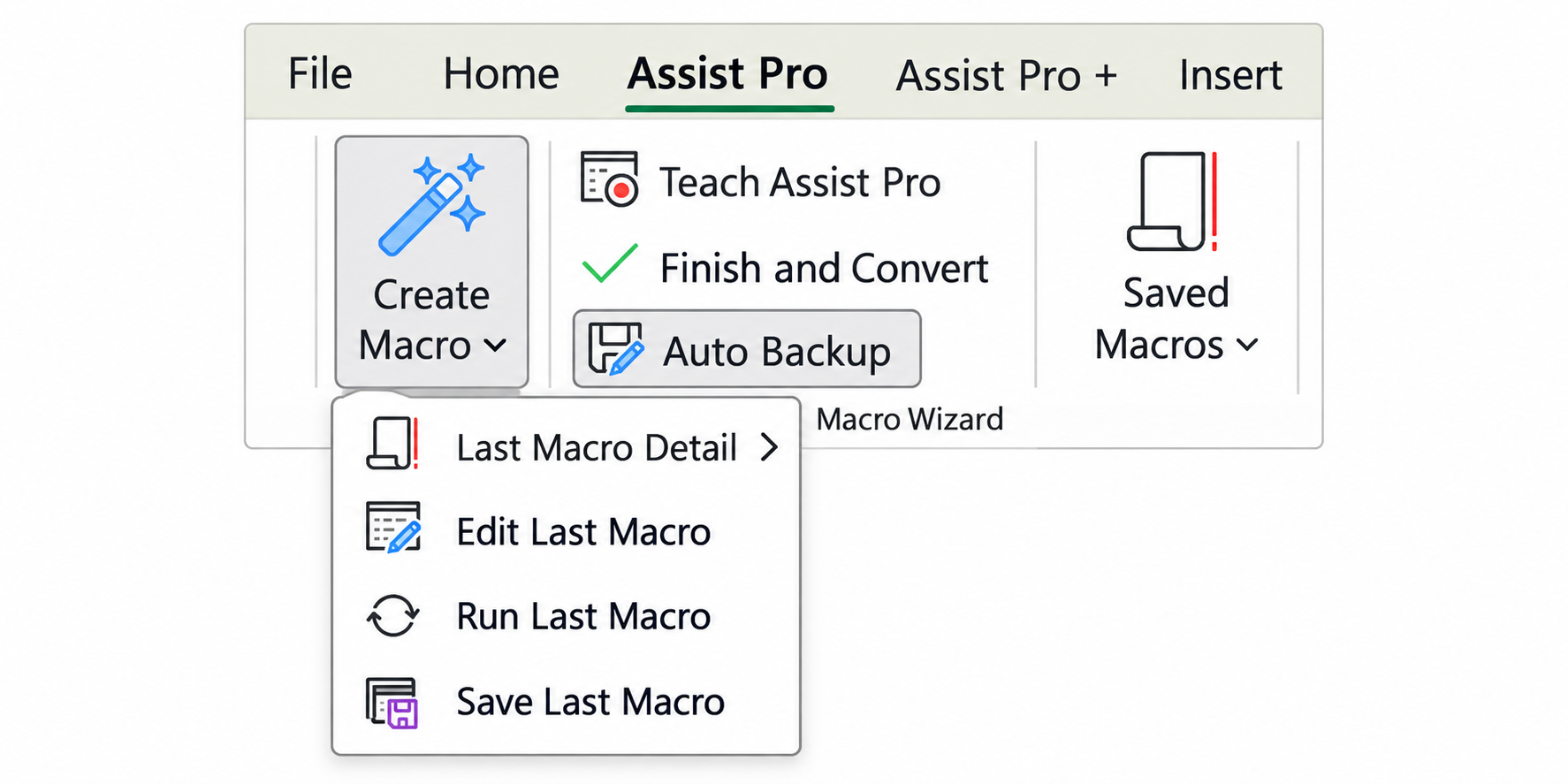
Name your sheet, columns and result. Ask for the task you repeat, from tidying exports to building a monthly summary.
Review the generated explanation. Use Teach Assist Pro or Edit Last Macro to refine the routine, then test it on a copy.
Save a tested routine with a clear name. Run it again from Saved Macros when the next workbook arrives.
Turn a familiar sequence of Excel steps into a personal tool you can review, improve and run again.
Name the sheet and headers. Explain your rules and the output you want.
Check the result against source rows and totals. Refine the instructions where needed.
Save a tested macro in your personal routines. Check that the next file fits the same rules before rerunning it.
Your monthly cleanup, recurring report or checking routine, ready for the next workbook.
Learn to define exact rules, review generated code, edit saved macros and test repeat runs. The dedicated learning guide brings the full workflow, controls, examples and troubleshooting together.
Use exact sheet names, table headers, thresholds and output names. Compare weak prompts with copyable examples.
Choose Edit Last Macro, Save as New, Overwrite or Recycle with a clear understanding of what each does.
Check scope, row counts, amounts, known exceptions and repeat runs, then troubleshoot specific problems.
Use the sample workbook to build your first routine. Follow the steps at your own pace, then try another prompt.
Step 1 of 6
Start with cleaning, then try duplicate flags or a monthly summary.
Create a macro that cleans the AccountingDemoData table on the Accounting Demo sheet. Trim extra spaces, standardise text capitalization, convert valid text amounts to numbers and convert valid dates to Excel dates. Highlight values that cannot be converted. Do not delete any rows.
This guide runs in your browser. Macro generation and testing happen in Excel.
If Macro Wizard cannot create or insert a VBA action, Excel may be blocking programmatic access to the VBA project. In Excel, open File → Options → Trust Center → Trust Center Settings → Macro Settings, then enable Trust access to the VBA project object model.
Close and reopen Excel, then try the workflow on a copy of a workbook.
Create, edit, test and rerun macros. Save up to 30 personal routines on Assist Pro or the Pro+ bundle.
Compare plansStart with the current 10-day trial, or speak to us about what your team needs.